How can I look at the raw messages sent to the model?
Overview
You can enable X-Ray to peek behind the curtain and inspect the low-level messages exchanged with the model during your conversation.
Activating and Using X-Ray
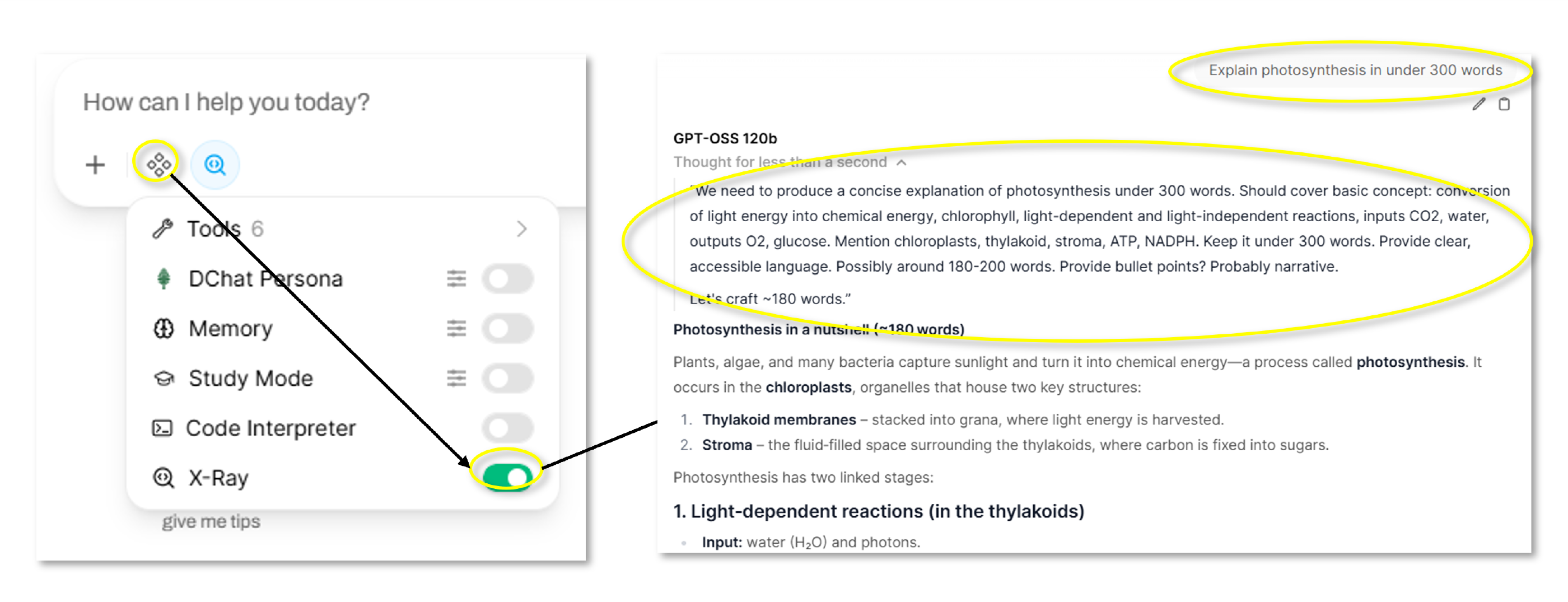
Go the the Integration menu, and turn on “X-Ray.” Then enter your prompt as usual.
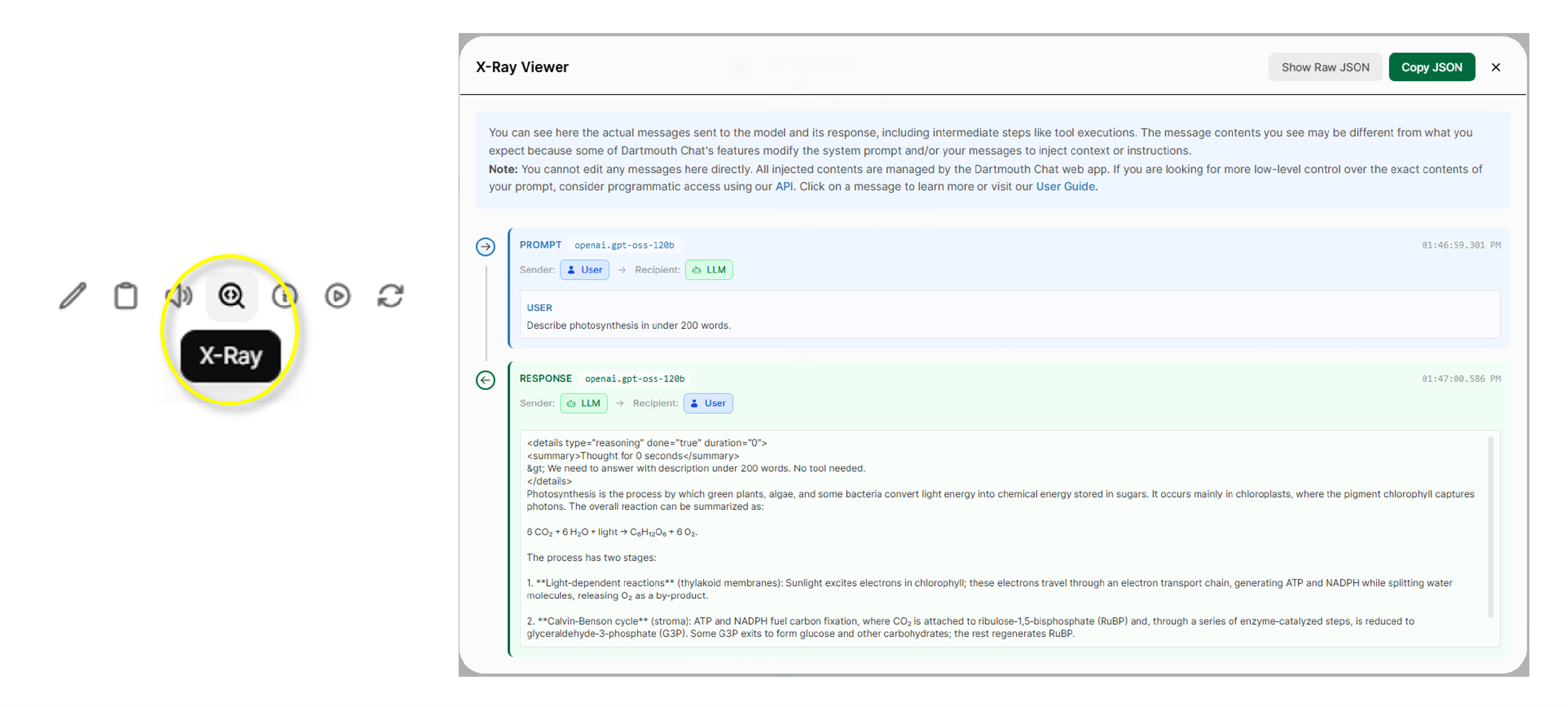
Once you’ve received the response, click on the magnifying glass button under the last model response to see information about the interactions between Dartmouth Chat and the model. You can use this function to show the raw JSON and/or copy the JSON message if needed.
Didn’t find what you needed? Please reach out to research.computing@dartmouth.edu.