How do I connect my coding tool to Dartmouth Chat API?
Overview
Your CLI coding agent or preferred IDE (integrated development environment) may have extensions that will allow it to work directly with Dartmouth Chat through the API. This connection can be used to ask questions of Dartmouth Chat within your CLI coding agent or VS Code to create and improve your code.
Get your API Key
- To connect these coding agents to Dartmouth Chat, you will need your Dartmouth Chat API Key.
- To get your API Key, log into Dartmouth Chat and navigate as follows: Profile Picture(in the lower left-hand corner) > Settings > Account > API Key
Connecting from Visual Studio (VS) Code: Kilo Code
- Set up Kilo Code (Extension)
- Install from the VS Code Marketplace.
- On the left-hand activity bar, click on the Kilo Code icon
- Click on Settings -> Providers and at the bottom of the page click Connect under Custom provider and enter the following:
- Provider ID: dartmouth-chat * Display Name: Dartmouth Chat
- Base URL: https://chat.dartmouth.edu/api
- API Key: Enter your API key here (from above)
- Models: For best results, Select a Claude or GPT Model as well as a local model like GPT-OSS-120b and then select Add model(s)
- Click Submit
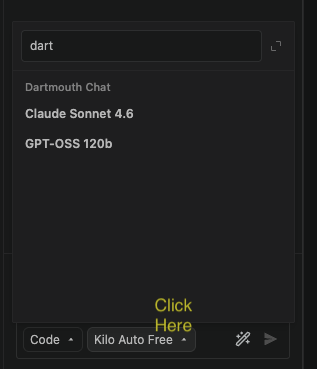
* Click the Model Selector and type in Dartmouth to see your models.
Connecting from CLI Coding Agent: Claude Code
- Install Claude Code
- Follow the instructions to install this tool.
- If this is a fresh install, run the below commands from the terminal (adding your Dartmouth Chat API Key and changing the shell as needed); otherwise, adapt them to your needs:
Mac OS:
Add the Dartmouth Chat API Key to KeyChain:
security add-generic-password -s "dartmouth-chat-api-key" -a ${USER} -w
Paste in the Dartmouth Chat API Key and hit return
Paste in the Dartmouth Chat API Key and hit return

mkdir -p ~/.claude &&
Mac OS:
cat << 'EOF' >> ~/.claude/settings.json
{

  "apiKeyHelper": "security find-generic-password -s \"dartmouth-chat-api-key\" -w",

  "env": {
    "ANTHROPIC_BASE_URL": "https://chat.dartmouth.edu/api",
    "ANTHROPIC_MODEL": "anthropic.claude-sonnet-4-6",
    "DISABLE_NON_ESSENTIAL_MODEL_CALLS": "1",
    "API_TIMEOUT_MS": "3000000",
    "CLAUDE_CODE_DISABLE_NONESSENTIAL_TRAFFIC": "1",
    "CLAUDE_CODE_DISABLE_EXPERIMENTAL_BETAS": "1"
  }

}

EOF
For VSCode use: After completing the above steps, install the Claude Code Extension and in the Claude Code Extension settings set the default model to “anthropic.claude-sonnet-4-6”
For terminal use: In the directory of your choosing run the command claude
Connecting from CLI Coding Agent: OpenCode
- Install OpenCode
- Follow the instructions to install this tool.
- If this is a fresh install, run the below commands from the terminal (adding your Dartmouth Chat API Key and changing the shell as needed); otherwise, adapt them to your needs:
mkdir -p ~/.config/opencode && cat << 'EOF' > ~/.config/opencode/opencode.json
{
  "$schema": "https://opencode.ai/config.json",
  "permission": {
    "*": "ask",
    "edit": "allow"
  },
  "provider": {
    "Dartmouth": {
      "npm": "@ai-sdk/openai-compatible",
      "name": "Dartmouth Chat",
      "options": {
        "baseURL": "https://chat.dartmouth.edu/api",
        "apiKey": "your_api_key_goes_here",
        "timeout": 600000,
        "chunkTimeout": 300000
      },
      "models": {
        "openai.gpt-oss-120b": {
          "name": "GPT-OSS 120b",
          "attachment": true,
          "reasoning": true,
          "tool_call": true
        },
        "google.gemma-4-31B-it": {
          "name": "Gemma 4 31b",
          "attachment": true,
          "reasoning": true,
          "tool_call": true,
          "limit": {
            "context": 262144,
            "output": 262144
          }
        },
        "qwen.qwen3.5-122b": {
          "name": "Qwen3.5 122b",
          "attachment": true,
          "tool_call": true
        },
        "anthropic.claude-haiku-4-5-20251001": {
          "name": "Claude Haiku 4.5 2025-10-01",
          "attachment": true,
          "reasoning": true,
          "tool_call": true
        },
        "anthropic.claude-sonnet-4-6": {
          "name": "Claude Sonnet 4.6",
          "attachment": true,
          "reasoning": true,
          "tool_call": true
        },
        "anthropic.claude-opus-4-6": {
          "name": "Claude Opus 4.6",
          "attachment": true,
          "tool_call": true
        },
        "mistral.devstral-2512": {
          "name": "Mistral Devstral 2",
          "attachment": true
        }
      }
    }
  }
}
EOF
In the directory of your choosing run the command opencode
- Use ctrl-p to change your model and select from the Dartmouth Chat models
Connecting from CLI Coding Agent: Mistral Vibe
- Install Mistral Vibe
- Follow the instructions to install this tool.
- If this is a fresh install, run the below commands from the terminal (adding your Dartmouth Chat API Key and changing the shell as needed); otherwise, adapt them to your needs:
mkdir ~/.vibe && cat << EOF > ~/.vibe/config.toml
auto_compact_threshold = 200000

[[providers]]
name = "Dartmouth Chat"
api_base = "https://chat.dartmouth.edu/api"
api_style = "openai"
backend = "generic"

[[models]]
name = "anthropic.claude-sonnet-4-6"
provider = "Dartmouth Chat"
alias = "sonnet-4.6"
temperature = 1
input_price = 3000.0
output_price = 15000.0

[[models]]
name = "anthropic.claude-haiku-4-5-20251001"
provider = "Dartmouth Chat"
alias = "haiku-4.5"
temperature = 1
input_price = 1000.0
output_price = 5000.0

[[models]]
name = "mistral.mistral-large-2512"
provider = "Dartmouth Chat"
alias = "mistral-large"
temperature = 0.3
input_price = 500.0
output_price = 1500.0

[[models]]
name = "mistral.devstral-2512"
provider = "Dartmouth Chat"
alias = "devstral"
temperature = 0.2
input_price = 400.0
output_price = 2000.0

[[models]]
name = "openai.gpt-oss-120b"
provider = "Dartmouth Chat"
alias = "gpt-oss"
temperature = 0.5
input_price = 0.0
output_price = 0.0

[ui]
theme = "monokai"

EOF

cat << 'EOF' > ~/.vibe/.env/
MISTRAL_API_KEY=your_dartmouth_chat_api_key

EOF
In the directory of your choosing run the command vibe
You can choose a model (or models) from the list of Model IDs that can be found at this endpoint: https://chat.dartmouth.edu/api/models . You can also mouse-over the model names in the Dartmouth Chat interface to find their ID.
Didn’t find what you needed? Please reach out to research.computing@dartmouth.edu .