Chat Compaction
Every model has a limit to how much context it can keep when responding to your prompts. You can help Dartmouth Chat to adapt to these limits by enabling compaction. Once a chat grows beyond what you set as the model’s context limit, Dartmouth Chat will summarize (compact) the current conversation to date, allowing room for new input and responses.
You can initiate, define, edit, and view compaction within Dartmouth Chat using several tools: settings, context window indicator, and the compaction overlay. The following article looks at each of these components.
Settings
The Chat Compaction tab under Setting allows users to enable/disable compaction, set a trigger threshold as a percentage of the context window, and toggle a visual overlay for compacted messages.
To enable Compaction in Dartmouth Chat, go to Settings (lower-left icon by your name > Settings), select Chat Compaction from the list, and enable chat compaction. Compaction is off by default.
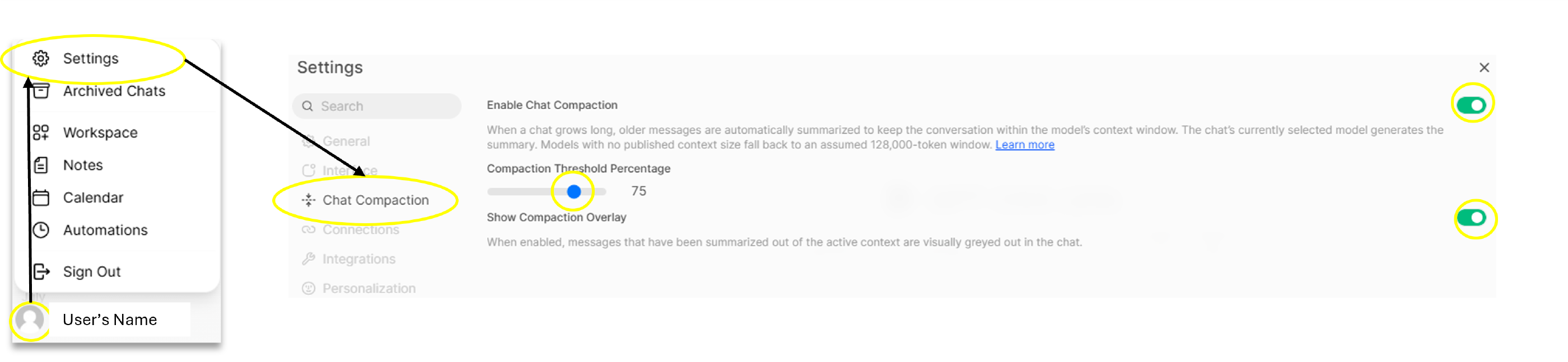
Once enabled, you can set the compaction threshold. The Compaction Threshold Percentage refers to the percentage of the model’s context window that will trigger automatic compaction. If for instance the model threshold is 128,000 tokens and you choose 75, Dartmouth Chat will compact the current conversation when it reaches 96,000 tokens. A summary of the conversation to date will be written and sent with your most recent messages verbatim as the context for the next reply.
NOTE: The summary is an added layer, not a replacement. Summaries also accumulate: compact a chat twice, and the second summary builds on the first instead of starting over. Each one preserves what you need going forward: decisions, your stated preferences and constraints, relevant files and tool results, and where the task stands.
Finally in Settings, you can set whether to show the Compaction Overlay. When enabled, messages that have been summarized out of the active context are visually grayed out in the chat.
Context Indicator
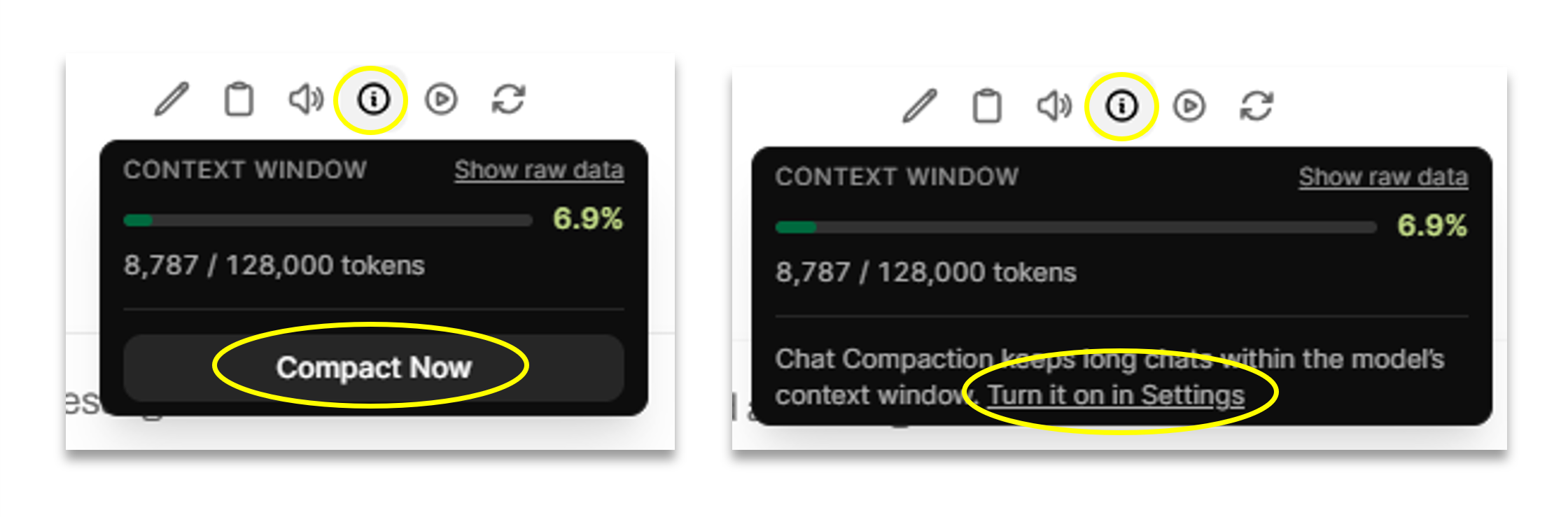
When you hover over the context-window icon on a model response, you will see an interactive panel with usage details, as well as a manual “Compact Now” button or a link to Settings if compaction is off.
Compaction Overlay
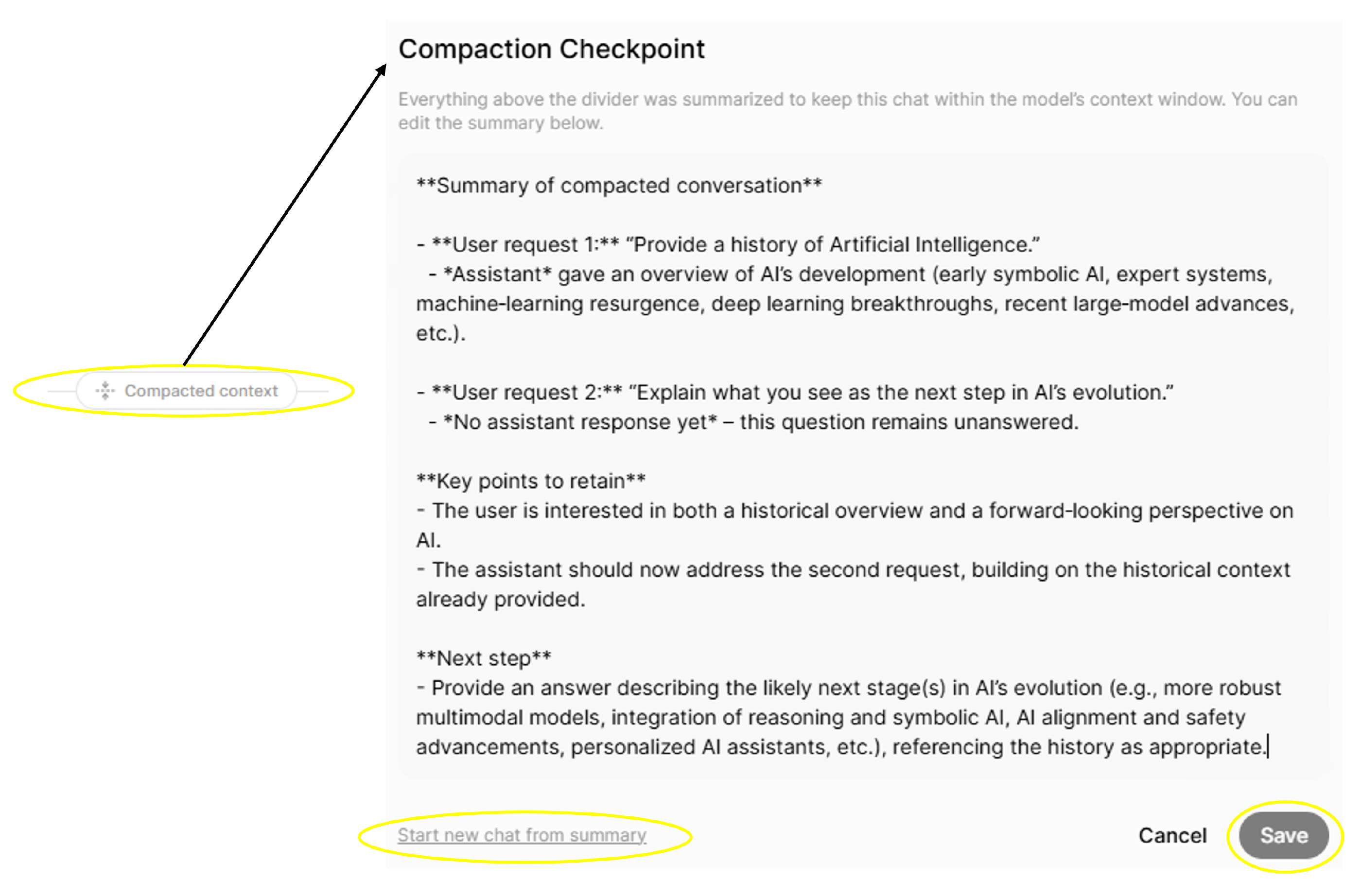
Messages folded into a summary are grayed out and separated from the verbatim message by a divider; clicking the divider opens the summary in an editable format. You can review, edit, and save the summary produced by the model or copy the summary to start a new chat.
Other Notes
A few limits to keep in mind: compaction doesn’t run in temporary chats or channels, token counts are estimates when a model doesn’t report exact numbers so treat the threshold as approximate, and you can’t edit a summary or compact while the response is streaming. If compaction fails, the conversation continues with full history and you may reach the model’s context limit sooner.