What is Automation and how do I use it?
Overview
Automation is a function built into Dartmouth Chat that can be used to automate repeatable tasks and workflows, such as the creation of a regular department newsletter using data from external sources.
How do I setup and run an Automation?
Setting up an Automation is a multi-step process that utilizes a number of embedded tools and functions including custom models, prompts, tools, and schedules.
Create a Custom Model
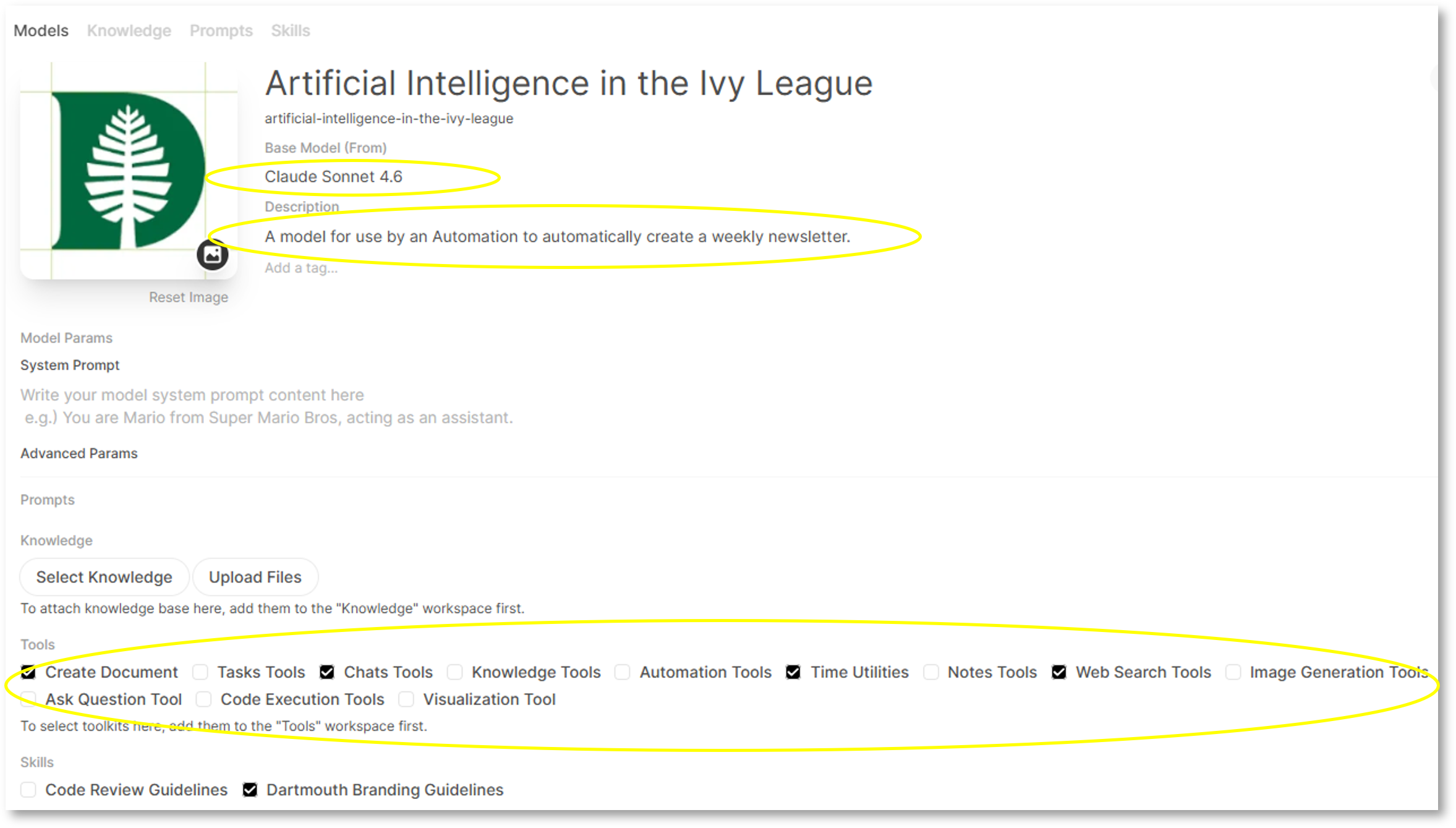
Start by constructing a custom model from the Workspace. While creating the model, you’ll need to include several components:
- Give your model a name and description
- Relate your custom model to an existing model (e.g., Claude Sonnet, GPT, Gemini, or an internal model such as GPT-OSS)
- Identify what tools will be needed to support your prompt
In this example, the following tools were selected:
- Create Document (to build a file from the results)
- Chats Tools (to track what had been done earlier by the Automation)
- Time Utilities (to provide a date/time to help target the results)
- Web Search (to allow the model to search for material on the web)
You may select other tools to support your own Automation.
Create your Automation
Start by selecting ‘Automations’ from the Settings menu, accessible in the lower left corner of the Dartmouth Chat interface. Create a new Automation by clicking the ‘New Automation’ button in the resulting screen. Add instructions, including:
- A title and description
- A detailed prompt
- A link to your custom model
- A schedule (i.e., daily, weekly, day/time)
When creating your prompt, be explicit in your instructions with the understanding that you’ll likely need to go through several iterations before arriving at a final, satisfactory outcome. Of note, you can use variables such as {{CURRENT_DATE}} to provide context. See the example below for ideas of what you might include in your prompt.

Run your Automation
You can run your Automation by clicking on the “Run Now” button or wait for it to run on the schedule you set.
Of note, depending on the selected underlying model, the specificity/complexity of your prompt, and the tools utilized, your Automation could use a large number of tokens each time it runs. Be thoughtful of the timing (i.e., just before your daily credits expire for the day) and the complexity of your prompt when building Automations.

Access the Results of your Automation
After an Automation runs, the results will be available by date/time in a folder visible in the left-hand menu. Click on the link to view the result.

We look forward to adding new tools and capabilities to Automations over time.
Didn’t find what you needed? Please reach out to research.computing@dartmouth.edu .