How do I organize, access, and share past chats?
Overview
You can use the functions present in Dartmouth Chat to organize your past conversations, and even set up rules for similar, future conversations.
Accessing, Sharing, and Tagging Past Chats
Your past chats are stored by the system, and can be accessed, organized, shared, and/or downloaded as needed. To access this history, click on the three lines in the upper left-hand corner (i.e., the “hamburger”) to view the left-hand menu. Chats are listed chronologically starting with the most recent.
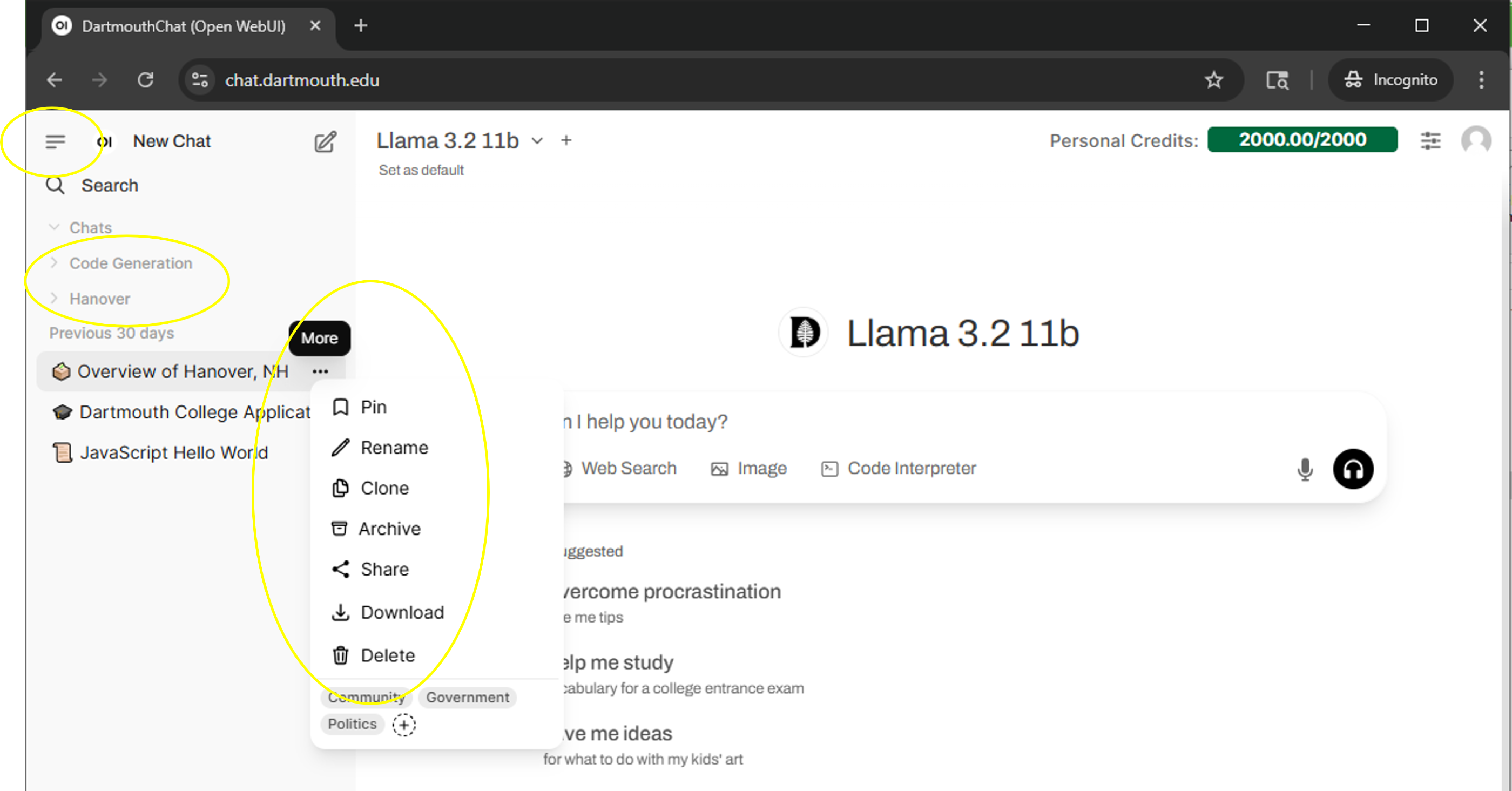
By clicking on the label, you can access the historical chat itself and continue where you left off. By clicking the three dots (…) to the right of each result, you can access a menu of options, including “Rename”, “Share”, “Clone”, “Download”, and “Delete”. You can also tag individual conversations to make them easier to find in future searches. Click on the “+” sign to add new tags (you can choose from an existing list or add your own).
Using Folders to Organize your Chats
You can also create folders to organize your past chats and prepare for future chats .
To create a folder, mouse-over the “Folders” link in the left sidebar and click on the “+” sign. Rename and save the folder. You can then drag and drop your past chats into the folders to organize them. This will allow you to group together conversations dealing with similar topics.

Didn’t find what you needed? Please reach out to research.computing@dartmouth.edu .